

Using Teams for Tele-Therapy
Everything you need to host individual and group therapy sessions through Microsoft Teams — right from your dashboard.
⬇️ Install Microsoft TeamsFirst things first: Make sure you have Microsoft Teams installed on your computer or device before following these steps.
Hosting Individual Therapy
Go to remoteiop.com and sign in with your staff account.
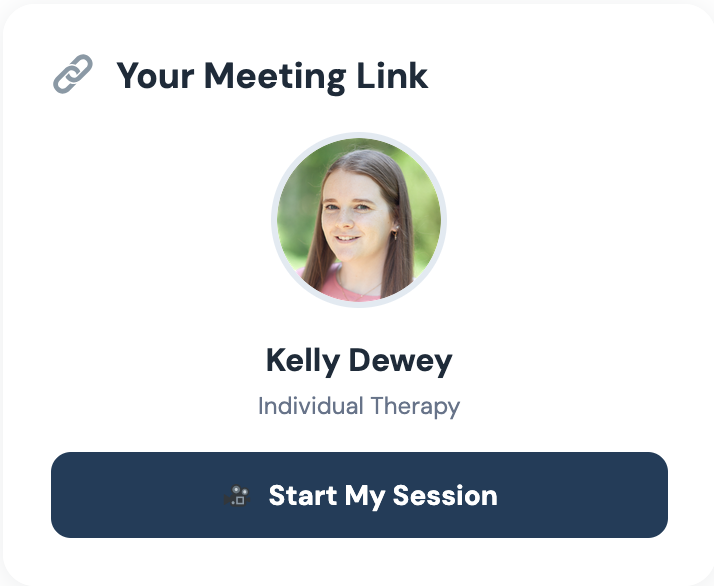
Once logged in, go to the Therapist Dashboard. Your personal card will appear in the sidebar automatically — look for your photo and the "Start My Session" button.
A window will appear asking if you want to open Teams. Click "Yes" or "Allow".
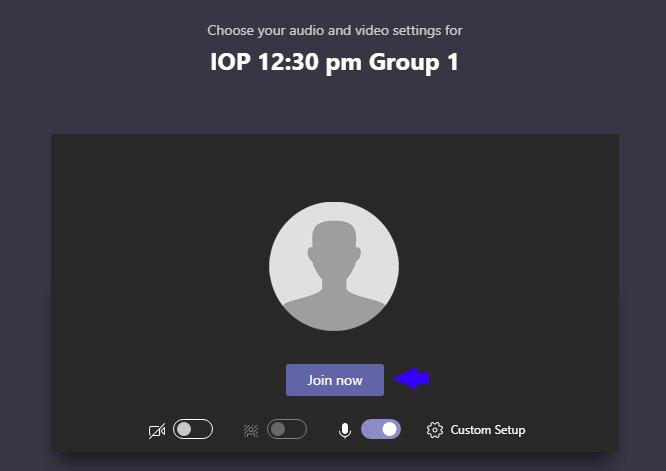
Once Teams opens, click "Join Now" to enter your personal video room.
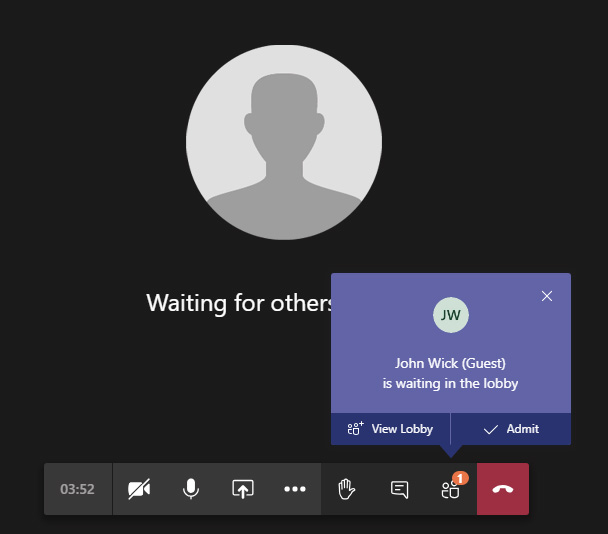
You'll be notified when your patient tries to join. Click "Admit" — they cannot enter until you do.
Hosting Group Therapy
Go to remoteiop.com and sign in with your staff account.
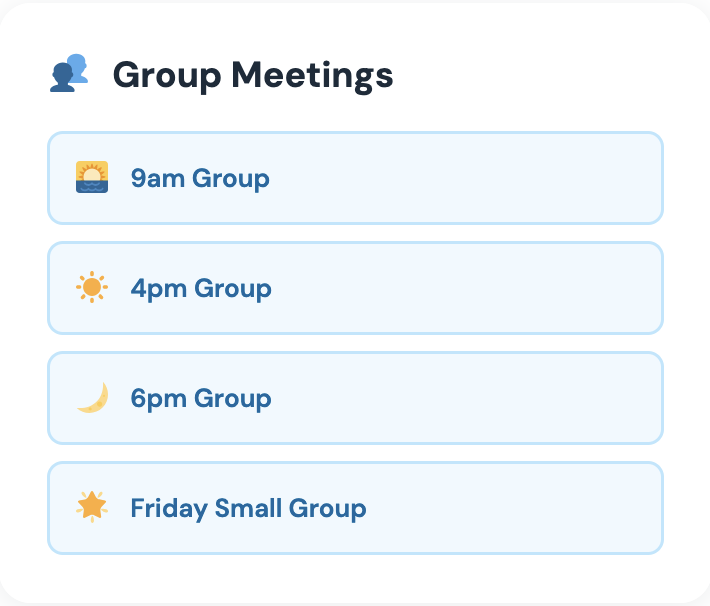
On the Therapist Dashboard, look in the sidebar for the Group Meetings card. Click the link for the session you are hosting — 9am, 4pm, 6pm, or Friday Small Group.
A window will appear asking if you want to open Teams. Click "Yes" or "Allow".
Once Teams opens, click "Join Now" to enter the group video room.
You'll be notified as patients join the lobby. Click "Admit" for each — they cannot enter until you do.
Playing Videos in Group Therapy
To share your screen and play videos during group therapy, click the Share button in the Teams meeting controls.

Make sure to check the box that says "Include system audio" before sharing. If this box is not checked, participants will not be able to hear any videos you play.
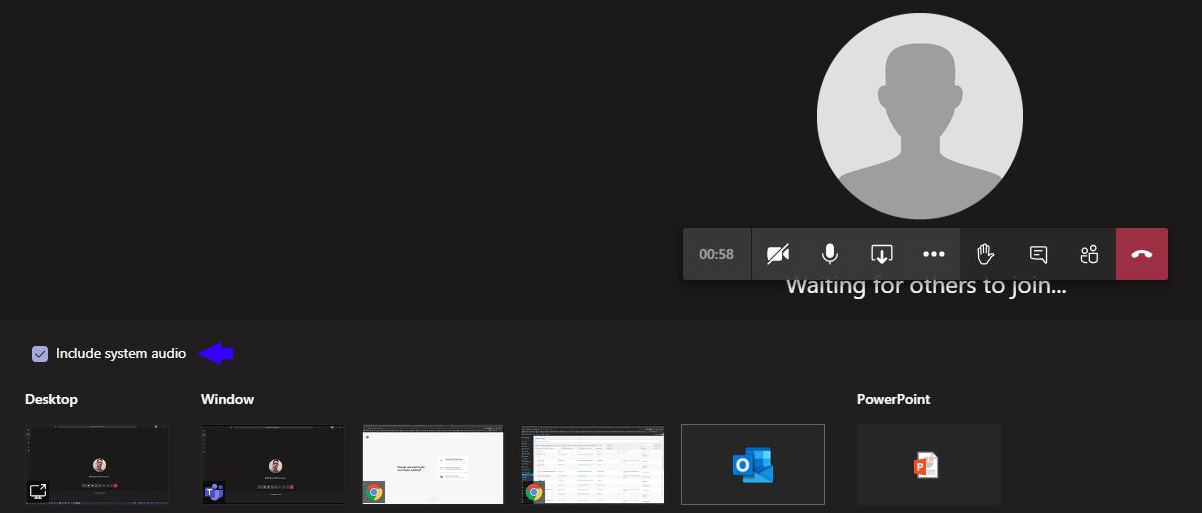
After checking the box, click the screen or window you want to share.